Installation package
Interactive Pro IP CCTV with Microphone Recording
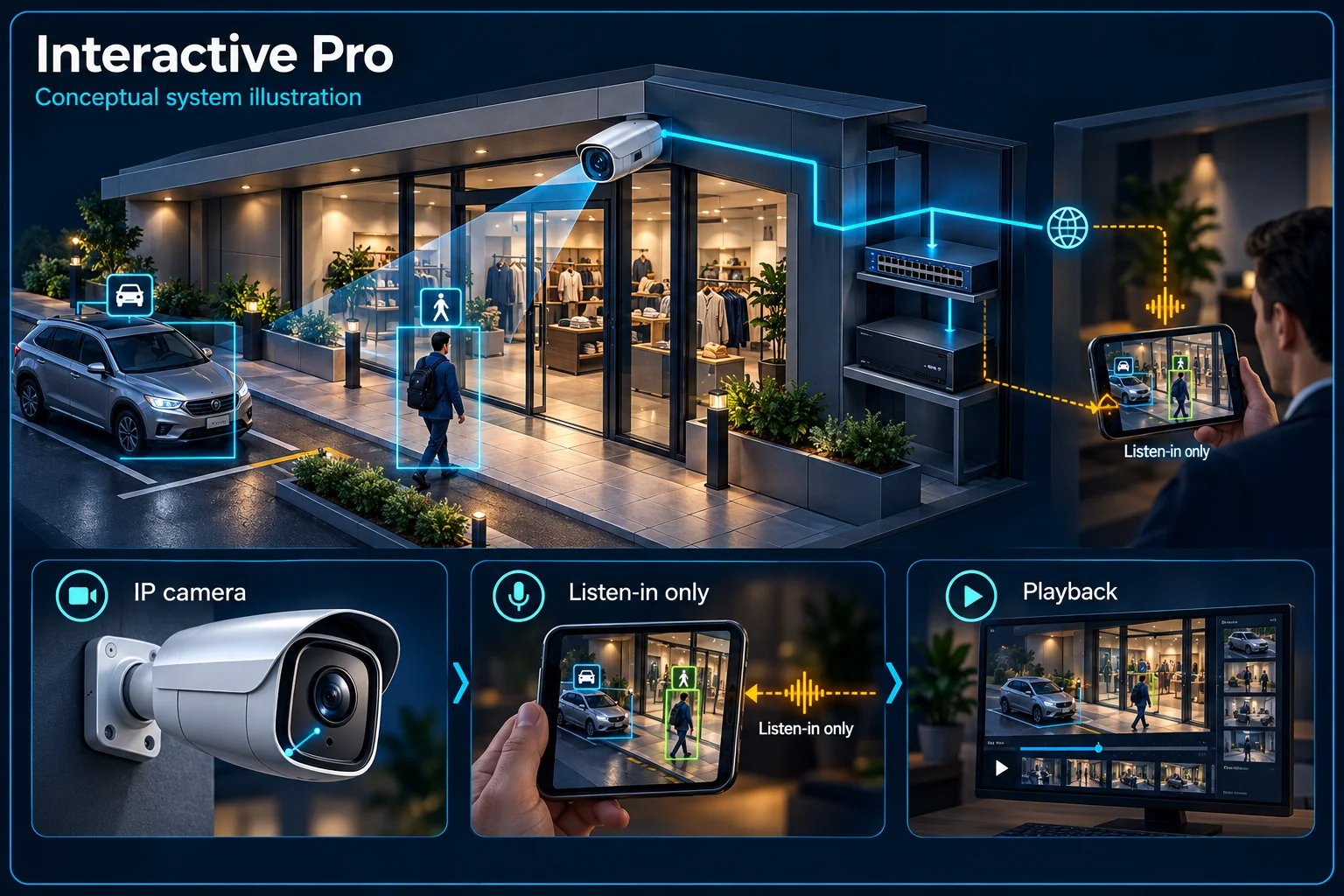
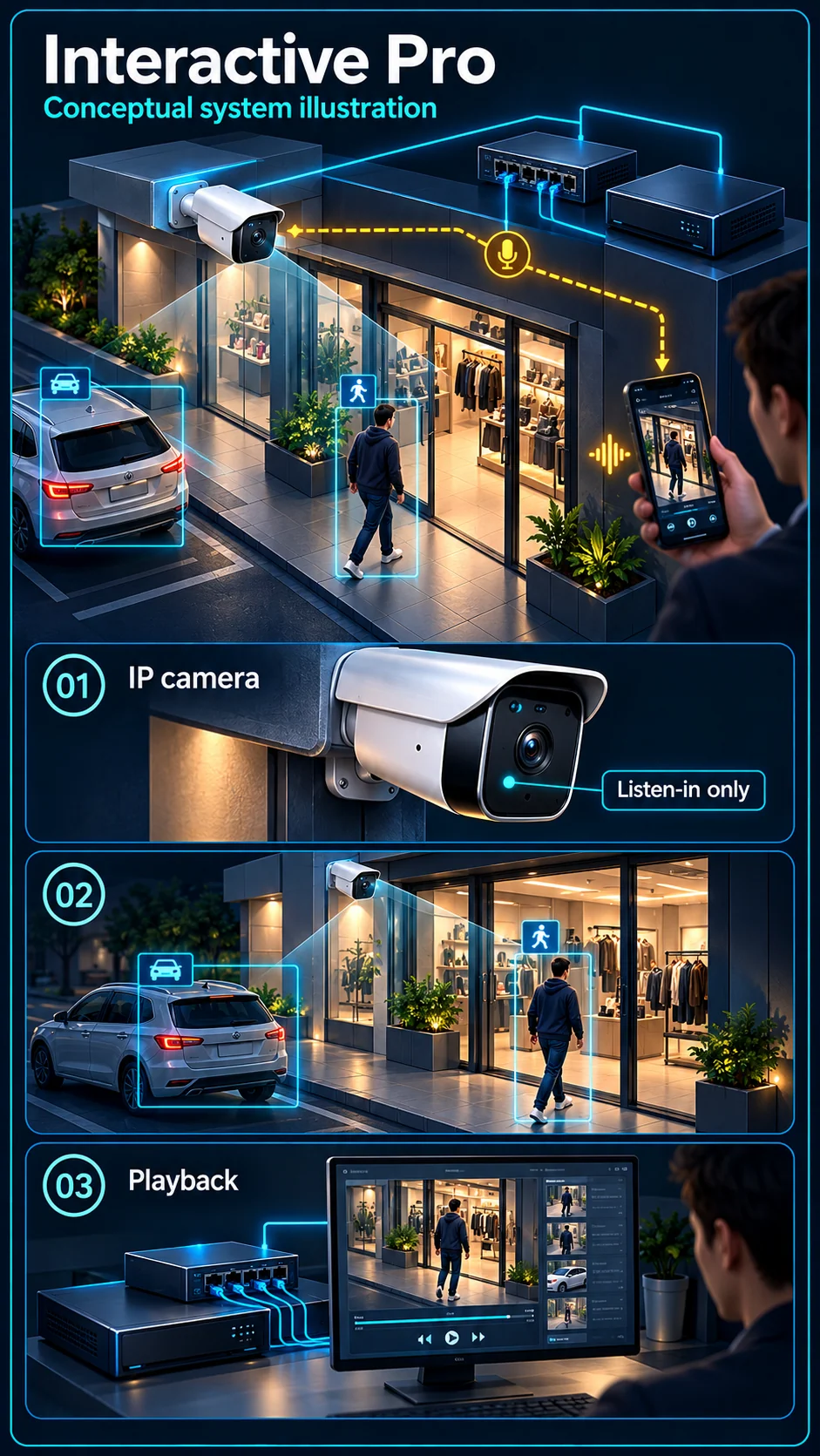
Interactive Pro is the IP reference choice for selected camera-side target functions and microphone audio alongside video recording. Its approved audio description is listen-in, not assumed two-way conversation. It is relevant when sound can help an authorised operator understand a scene without needing a camera speaker response.
How this package fits together
Interactive Pro Canvas
System planning notes
Microphone sound follows a one-way recording path
No camera speaker or reverse talk-back arrow is drawn for the Interactive Pro reference.
- Solid line: illustrated functional path or agreed test route.
- Dashed line: optional device or compatibility to confirm.
- One-way arrows distinguish microphone recording from two-way conversation.
- Target-event support and sound capture are separate camera capabilities.
Capture purpose and location agreed
Selected IP camera captures audio
Audio recording enabled where agreed
Access appropriate to the user's role
Separate exact-model function
- E1: Sound at the scene → Supported microphoneSound capture
- E2: Supported microphone → Configured NVR streamConfigured audio stream
- E3: Configured NVR stream → Authorised listen / reviewListen or playback
- E4: Camera target event → Configured NVR streamSupported event data
Understand the microphone scope
Listen to sound near the camera
A supported built-in microphone captures sound at its installed position. Assess the expected background noise and why sound is needed. A camera image that covers a wide area does not mean all speech in that area will be intelligible.
Confirm whether sound is recorded
Microphone capability and the recorder's chosen stream settings are different parts of the setup. Agree whether audio is retained with video, who may access it and which locations are appropriate for sound capture.
Keep audio and target detection distinct
A microphone is not a speaker
The Interactive Pro reference does not establish remote talk-back. A person can listen without the camera being able to play their voice. If speaking to a visitor is essential, assess a suitable Proactive Pro or other confirmed talk-back design.
Target functions follow the exact camera
Human or vehicle classification and selected illumination functions must be matched to the complete camera variant. These capabilities do not automatically establish every line-crossing, intrusion or alarm-output function on every connected channel.
Fit the plan to an operating routine
Use sound for authorised context
An office entrance or stock handover position may benefit from a sound record where appropriate. Agree the purpose and the people entitled to review it. Avoid collecting unrelated conversations merely because the equipment offers a microphone.
Choose an alert and response separately
The system may record or notify on supported configured events, but notifications are not a staffed monitoring service. The business should identify who reviews an event and whether any separate warning or access-control action is needed.
Test the functions actually selected
Review an audio and video sample
Check live listening and a recorded clip using the nominated user account. Verify timestamps, the intended microphone setting and the installed background sound. Do not accept the audio path by checking an icon alone.
Check camera events under the real view
Where target events are required, walk the agreed area in daylight and darkness and review the configured rule. Record the processing location and any operating-mode limits rather than importing a generic all-channel AI promise.
Questions about Interactive Pro
Can I speak through an Interactive Pro camera?
The approved Interactive Pro reference is microphone/listen-in only. A speaker and working talk-back path need a different confirmed model or configuration; the name does not provide them.
Does microphone audio start an alarm?
Audio recording and alarm-event logic are different functions. Do not assume sound capture creates a warning or a panel event without a specifically supported and configured workflow.
Is all audio automatically saved?
No. Confirm the camera capability, stream settings, recorder configuration, access permissions and agreed recording scope. These choices should be checked using a real sample clip at handover.