System feature
Line Crossing Detection: Direction, Targets & Response
Line crossing uses a configured virtual line in a supported camera view to identify a qualifying crossing event. The line, travel direction, target filter and armed period work together. HJ positions that rule around the site's actual boundary and normal movement, not around every visible road.
How this feature fits together
Line Crossing Detection Canvas
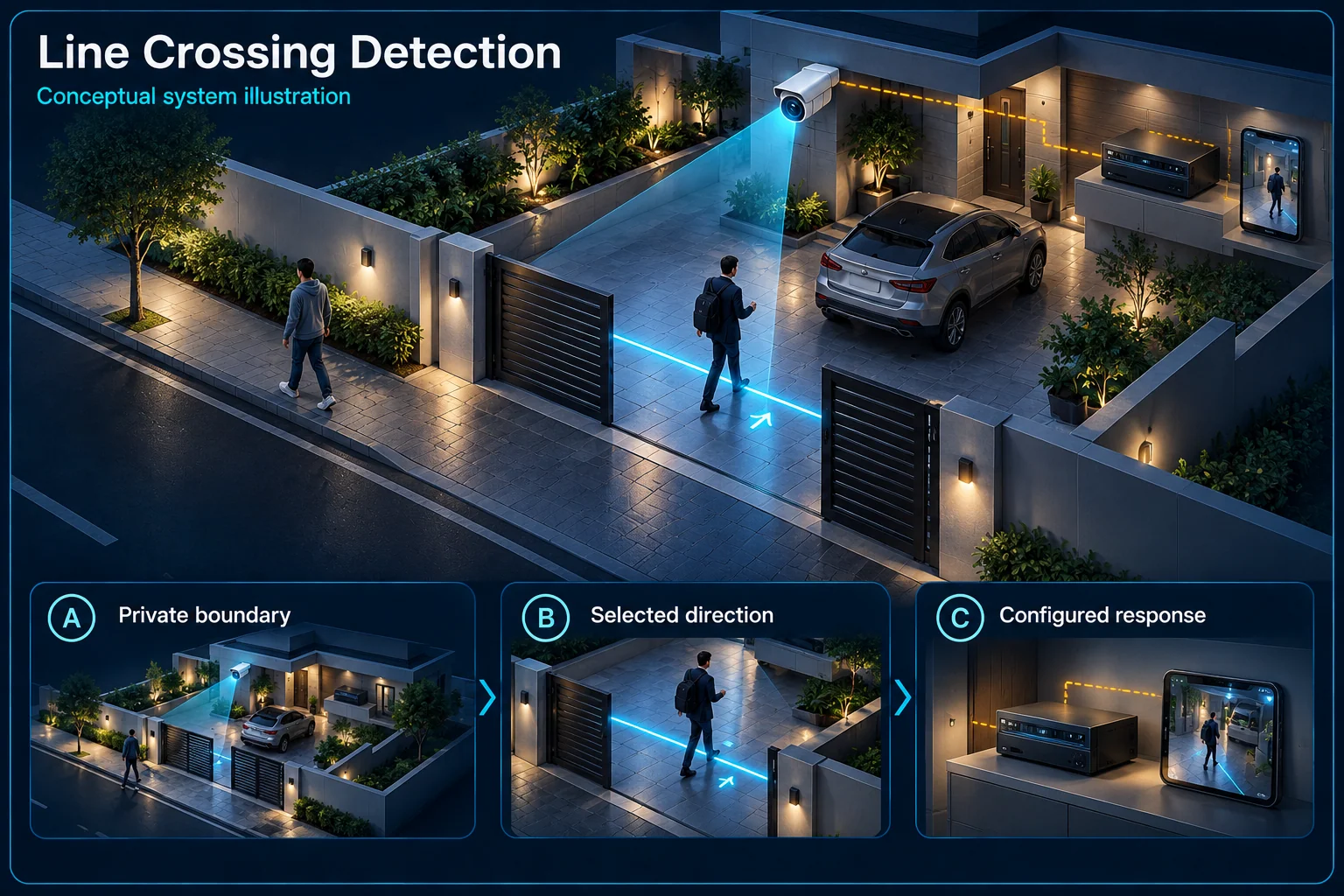
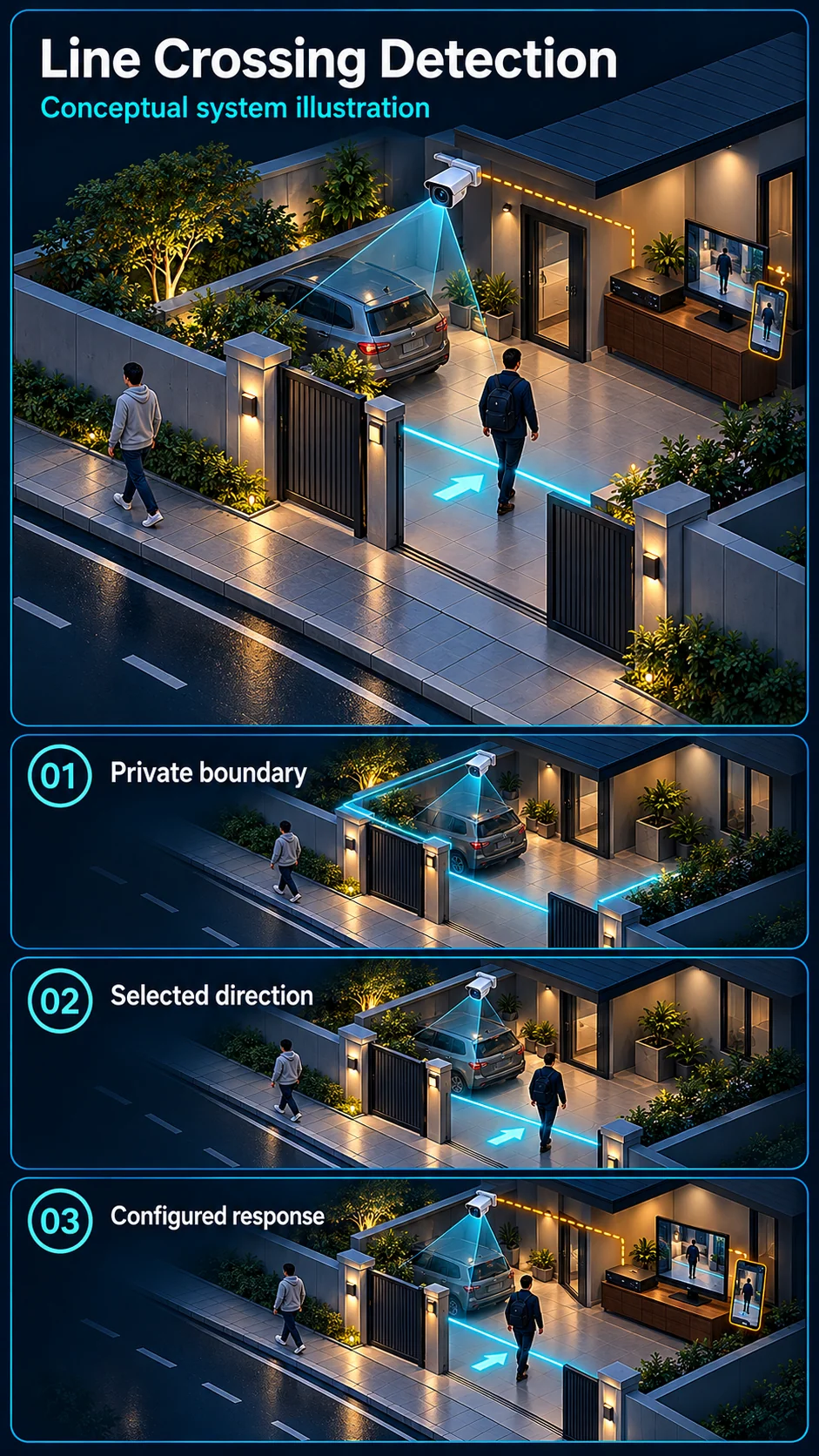
System planning notes
Watch the road; place the warning line inside your boundary
This example separates road viewing from a selected crossing at the private entrance. The direction controls illustrate a rule, not live detection.
Illustration: review entry across the selected line, with the agreed target and armed period.
A to B: Illustration: review entry across the selected line, with the agreed target and armed period.
B to A: Illustration: review departure across the same line; support and configuration must be verified.
Both directions: Illustration: both crossings are relevant only when the selected device and agreed operating rule support them.
- Solid line: illustrated functional path or agreed test route.
- Dashed line: optional device or compatibility to confirm.
- M1: Planned view
- M2: A
- M3: Include in site test
- The horizontal line represents an event rule, not a physical barrier.
- Road traffic and animal tests do not automatically become warning events.
Agreed entrance boundary
A to B, B to A or both if supported
Exact device and settings to verify
Recording and selected outputs
- E1: Virtual line → Crossing directionTravel through the line
- E2: Crossing direction → Target + armed timeApply target and schedule
- E3: Target + armed time → Chosen responseSupported response — optional / compatibility to confirm
Place a line where the event matters
Use an operational boundary, not the edge of the picture
A useful line might distinguish an approach route from a restricted entrance. Public-road traffic may still need to be visible without becoming a warning event. Agree the intended boundary and privacy limits before drawing a line on a screen.
Keep the crossing visible on both sides
The camera needs a useful view of the approach and crossing area for the selected analysis. Gates, parked vehicles, vegetation and camera movement can affect it. The final position is checked against actual target movement, not just a tidy diagram.
Define direction, target and armed time
A to B and B to A can mean different things
An arrival and a departure may require different handling. Where the exact device supports the required direction setting, document whether one direction or both are relevant. Do not assume that a line crossing and a person remaining nearby are the same rule.
Human filtering and schedules are separate conditions
Human or vehicle selection is available only where supported by the chosen processing device. Normal deliveries, family movement and staff access also need an agreed operating schedule. A classifier does not determine whether the crossing was authorised.
Choose what follows a qualifying event
A detected crossing is not automatically a siren
The response may be an event clip, a notification or a selected camera warning. An independent alarm needs its own compatible path and armed logic. Check the destination of the event before describing the installation as linked.
Keep the settings understandable to the operator
Name the view and line so an authorised user can identify the location. Record the selected direction, time window and responsible recipient. Explain how to pause or restore the approved rule without unintentionally changing recording or other camera functions.
Commission the route under real conditions
Walk both directions by day and night
Test the intended crossing and the opposite movement, including relevant target positions and lighting. Check the event record and the output actually requested. Add a safe route test with the household dog or normal site vehicle where that condition matters.
Retest when the scene changes
A relocated camera, new gate position or tall stock can change the useful view. Keep the accepted line and example test record with the handover. Revisit the rule when the installation or operating routine changes rather than relying on an old screenshot.
Questions about Line Crossing Detection CCTV
Can I draw the line across the public road?
A public road may be part of the viewing context, but it should not automatically become your warning boundary. Agree a suitable line within the permitted site scope and review normal traffic and privacy.
Will crossing in the opposite direction also trigger?
That depends on the supported direction setting and the configured rule. Test the intended and opposite movements instead of assuming all crossings behave the same way.
Can line crossing trigger an external alarm?
Only through a supported, configured and tested event path. A compatible camera event, interface, alarm logic and selected output all need to be confirmed.